Wednesday, February 13, 2019

SSRS : merge multiple rdlc report PDF in single PDF

In this blog we will discuss how to merge more than one PDF in single PDF file generated by RDLC report.


Here is code to generate PDF report data (in memory stream) from rdlc file:
C# code:

public MemoryStream WritePDFReport(List<ReportModelreportData)
        {
            Microsoft.Reporting.WinForms.Warning[] warnings;
            string[streamIds;
            string mimeType = string.Empty;
            string encoding = string.Empty;
            string extension = string.Empty;

            string deviceInfo =
          "<DeviceInfo>" +
          "  <OutputFormat>PDF</OutputFormat>" +
          "</DeviceInfo>";

            ReportViewer viewer = new ReportViewer();
            try
            {
                string exeFolder = System.AppDomain.CurrentDomain.BaseDirectory;
                string reportPath = Path.Combine(exeFolderstring.Format(@"Sample.rdlc));

                viewer.ProcessingMode = ProcessingMode.Local;
                viewer.LocalReport.ReportPath = reportPath;                              
                
                ReportDataSource ds = new ReportDataSource("ReportDataSet"reportData);
                viewer.LocalReport.DataSources.Add(ds);

               viewer.LocalReport.Refresh();
              
               byte[] bytes = viewer.LocalReport.Render("PDF"deviceInfo
               out mimeTypeout encoding, out extension, out streamIdsout warnings);

                return new MemoryStream(bytes);           
            }
            catch (Exception)
            {
                throw;
            }
            finally
            {
                viewer.LocalReport.Dispose();
                viewer = null;
            }
        }

WritePDfReport() method takes report data as input and it generates report by using ReportViewer Class and it calls Render method to generate the memory stream of report.

the above code generates only single PDF file and if you want to generate more than one fPDF iles and merge all into a single PDF file, for this you need to use PDFsharp.


Here is code to merge PDF files
C# Code:

using PdfSharp.Pdf;
using PdfSharp.Pdf.IO;


          List<ReportModelreportData;

          PdfDocument document = new PdfDocument();
            for (int ix = 0; ix < 4; ix++)
            {
                PdfDocument tempPDFDoc = PdfReader.Open(WritePDFReport(reportData), PdfDocumentOpenMode.Import);

                for (int i = 0; i < tempPDFDoc.PageCounti++)
                {
                    PdfPage page = tempPDFDoc.Pages[i];
                    document.AddPage(page);
                }
            }

            document.Save("C://logs/sample.pdf");       
            document.Close()

·         Call WritePDFReport() method to generate report and get memory stream ( in byte arrays)
·         Import report data into temporary PdfDocument object - tempPDFDoc by Call PdfReader.Open() method
·         Add the imported PDF page from into Main PdfDocument object – document.
·         Call PdfDocument ‘s save method to save all imported pdf page into single pdf page (sample.pdf)
·         Call Close() method of PdfDocument – document

For more information about PDFSharp dll, Code Samples and installation steps please visit at below URLs
·         http://www.pdfsharp.net 
Thanks for visiting!!

Tuesday, February 12, 2019

C# Regex for alphabet, number and alpha-number

This blog will demonstrates how to write a regular expression to validate input value is only alphabet
or numeric or alpha-number or alpha-number with space but no special character are allowed.


There are few scenarios.

1. Only Alphabet are allowed.
^[a-zA-Z]*$

For above reg expression, valid input contains only alphabets.

Valid Scenario:  input value is only alphabet.

C# Code:
    string regExpression = @"^[a-zA-Z]*$";
    string input = "Rajeev";
    Console.WriteLine(Regex.IsMatch(input, regExpression));
    Console.ReadKey();

Console Output: True

Invalid Scenario: input value contains alphabet and numbers.

C# Code:
    string regExpression = @"^[a-zA-Z]*$";
    string input = "Rajeev123";
    Console.WriteLine(Regex.IsMatch(input, regExpression));
    Console.ReadKey();

Console Output: False


2.Only Number are allowed.
^[0-9]*$

For above reg expression, valid input contains only numbers.

Valid Scenario:  input value is only numbers.

C# Code:

    string regExpression = @"^[0-9]*$";
    string input = "9988234";
    Console.WriteLine(Regex.IsMatch(input, regExpression));
    Console.ReadKey();

Console Output: True

Invalid Scenario:  input value contains alphabet and numbers.

C# Code:
    string regExpression = @"^[0-9]*$";
    string input = "878Rajeev";
    Console.WriteLine(Regex.IsMatch(input, regExpression));
    Console.ReadKey();

Console Output: False


3.  Only alphabet – number are allowed.
       ^[a-zA-Z0-9]*$

for above reg expression, valid input contains only alphabet or number but special characters are not allowed.


Valid Scenario:  input value is only alphabet and numbers.

C# Code:
  string regExpression = @"^[a-zA-Z0-9]*$";
   string input = "Reg123";
   Console.WriteLine(Regex.IsMatch(input, regExpression));
   Console.ReadKey();

Console Output: True

Invalid Scenario:  input value contains invalid characters.

C# Code:
    string regExpression = @"^[a-zA-Z0-9]*$";
      string input = "Reg@123";
     Console.WriteLine(Regex.IsMatch(input, regExpression));
     Console.ReadKey();

Console Output: False


4.       Alphabet – number with space allowed :
               ^[a-zA-Z][a-zA-Z0-9\s]*$

for above reg expression, valid input should start with alphabet letter and after that it could be any alphabet or number or space but special characters are not allowed.

for space, ‘\s’ character is used in regular expression and there is one additional block  ^[a-zA-Z] in above expression for first letter validation, first letter should be always alphabet.

Valid Scenario:  input value contains alphabet and number with spaces.

C# Code:
string regExpression = @"^[a-zA-Z][a-zA-Z0-9\s]*$";
      string input = "rajeev Tiwari 83";
      Console.WriteLine(Regex.IsMatch(input, regExpression));
      Console.ReadKey();

Console Output:  True

Invalid Scenario:  input value contains invalid characters.

C# Code:
string regExpression = @"^[a-zA-Z][a-zA-Z0-9\s]*$";
      string input = "rajeev Tiwari@83";
      Console.WriteLine(Regex.IsMatch(input, regExpression));
      Console.ReadKey();


Thanks for visiting and please leave your comments, if you have any questions

Wednesday, February 6, 2019

Export swagger api document to pdf in Swagger UI

In this blog, we will discuss how to generate or export Swagger API documentation into PDF file. Recently I faced this challenge, when we needed to share API documentation information with external client and due to security and other reason we can’t expose production Swagger API URL to client and then we decided to go with PDF document which should have API information like API URL, input parameter, output model and HTTP verbs – GET/PUT/POST.

This blog will demonstrates steps to generate PDF document from Swagger UI/JSON data by using third party component (swagger-spec-to-pdf)

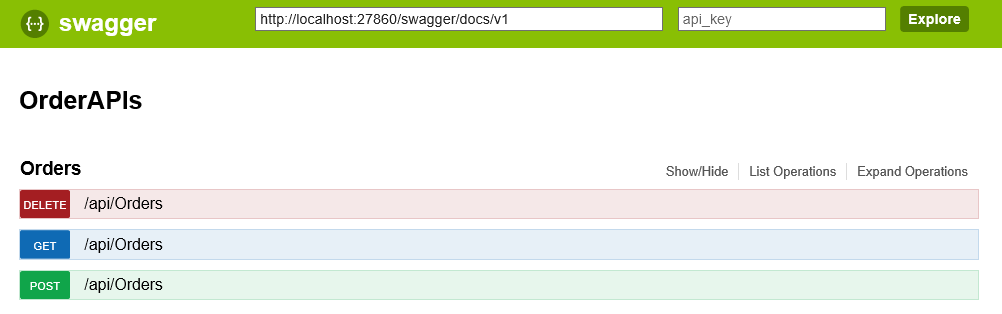
Here is swagger API URL


Swagger API 

In above image, you can see swagger document URL:  http://localhost:27860/swagger/docs/v1


  •  Install swagger-spec-to-pdf package by using npm
           Syntax:  
           npm install -g swagger-spec-to-pdf

  • Open the Command Prompt  and run the below command (swagger2pdf ) to generate PDF


  •  Generates api.pdf file


Generated api.pdf document:


Other swagger related posts

SQL Server - Identify unused indexes

 In this blog, we learn about the index usage information (SYS.DM_DB_INDEX_USAGE_STATS) and analyze the index usage data (USER_SEEKS, USER_S...